 Zombie Couple
Zombie Couple Video
One of you changes. The connection stays.
Turn one couple photo or two portraits into a gentle reunion, an embrace, and a warm memory—with original music.
Creating videos on Zombie Couple is coming soon.
Credit purchases will be available soon.
Two portraits. One generated story.
The video above was made with these two fictional adult portraits. Both references started as ordinary portraits; the second person’s zombie appearance was generated as part of the scene.
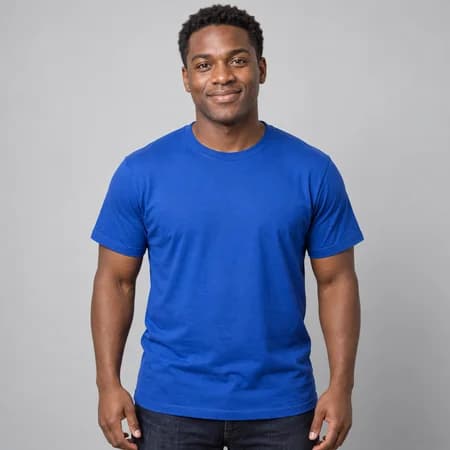
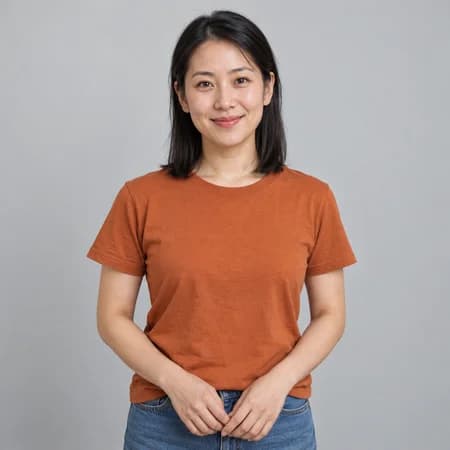
Settings used for this example
- Input
- Two separate portraits
- Length
- 10 seconds
- Quality
- 480p
- Shape
- Landscape · 16:9
What to look for when you play it
The blue and orange clothing remains recognizable, and the characters complete an embrace. The zombie makeup is quite pronounced. The background dissolves into the meadow rather than changing with a clean cut.
This is one result, not a promise of the same timing or likeness with every photo. Pause the preview to inspect the faces and transition before deciding whether the effect fits your idea.
Back to the video example ↑Choose photos that make the roles clear
A useful reference photo makes the two roles easy to distinguish. Prepare the faces and composition first, ready for when generation opens. These checks help you decide what to upload without writing a scene description.
Keep the face readable
Choose a recent, well-lit portrait with eyes, nose and mouth visible. Remove sunglasses and avoid a hand across the face. Very small faces in a group photo give the model less detail to work from. Use a source that already looks like the person, rather than a heavily filtered selfie.
Use separate photos when roles are unclear
Two individual portraits are useful when your favorite couple photo has overlapping faces or one person is looking away. Pick a similarly clear image of each adult. The first slot is the human and the second is the zombie; swapping the slots changes their roles.
Check the left and right of a shared photo
For one photo together, use two clearly visible adults with space between their faces. The person on the left is assigned the human role and the person on the right the zombie role. If that is not the story you want, choose separate portraits so you can set the roles explicitly.
Treat clothing as a reference, not a guarantee
In the displayed example, the blue shirt and orange top remain recognizable. Your result may still change fabric, accessories or facial details during movement. Simple clothing makes changes easier to spot. Review the whole clip, including the meadow scene, before downloading or sharing it.
From your photos to the finished clip
Add your photos, check the roles, and create your story.
Watch the example and prepare the photos
Play the preview with sound if you want to hear its generated audio. Compare the visible result with the two source portraits below it. Choose photos you have permission to use and agree with the other person on who will take the zombie role.
Review your settings when generation opens
Generation is coming soon. Once available, upload two portraits or one shared photo on this website. For a starting point comparable to this example, choose 10 seconds, 480p and 16:9 if available. Check the current credit estimate before submitting; other settings may cost more.
Generate and review your story when available
Once generation is available, sign in to Zombie Couple and leave Private gallery enabled if you want a private result. Review the displayed credit cost before submitting. After generation, check the faces, assigned roles, embrace and scene change. Download the MP4 from the completed result or find the task again in My creations.
Choose the length and frame for your story
Find a starting point that fits what you want to make.
Choose 5 seconds for a compact moment
The shortest option gives the sequence less time. It can be a starting point for a brief clip, but do not assume every stage of the displayed 10-second story will fit equally clearly. Check the quoted cost before you choose.
Use 10 seconds to compare with the demo
Our displayed example uses this duration. It gives you a concrete reference for pacing, although a new generation can place the embrace or scene change at a different moment. Matching the settings does not reproduce an identical clip.
Consider 15 seconds for a longer sequence
A longer setting allows more running time, not guaranteed face consistency or a cleaner transition. Choose it when the extra duration suits your intended edit and its displayed credit cost is acceptable.
Pick the frame for where you will share it
Use a vertical 9:16 frame for a full-screen phone post, 16:9 for a landscape presentation, or 1:1 for a square layout when the model supports it. The AI composes a new frame; it is not simply cropping this example to another shape.
Before you make a zombie couple video
Where will I upload, pay and generate?
Video generation and credit purchases on Zombie Couple are coming soon. For now, watch the example and prepare your photos. When available, you will upload photos, buy credits and generate videos on this website.
Do both people become zombies?
The intended sequence has one human and one zombie partner in the reunion, followed by a warm memory with both healthy. For two portraits, the second slot identifies the zombie. For a shared photo, the person on the right takes that role. Review the output because generation can misinterpret details.
Should I edit a portrait to look like a zombie first?
Ordinary portraits are the starting point shown in our example. The preset supplies the zombie transformation and scene. Pre-editing a face with strong makeup is not required and may make it harder to judge whether the result still resembles the original person.
Is the preview a customer video or an exact viral clip?
It is a generated demonstration using two fictional AI-created adult portraits. It is not a customer upload or a reproduction of a specific viral video. The input images and settings are shown beside the observations so you can judge this result for yourself.
Why does the scene blend instead of cutting instantly?
In this particular result the background visibly dissolves into the meadow. Generated motion and transitions do not always follow the requested sequence exactly. If a precise cut matters to your project, inspect the result before using it and consider editing the downloaded clip.
Can I expect the same faces and clothes in every frame?
No exact match is guaranteed. Watch the face during head turns and the embrace, then check it again after the background changes. The example retains recognizable clothing, but that observation does not establish a success rate for other photos.
How do I check the price and keep the result private?
When generation opens, select the available duration and quality to see the current credit requirement before generating. The Credits page shows the credit pack price and availability. Signed-in results default to private; check that Private gallery remains enabled. Uploaded reference photos are not included in the public result listing.
What should I do if the result is still processing?
Stay with the same generation task. Use the status refresh or Resume request after an interrupted connection instead of submitting a second generation. Confirmed failure releases eligible reserved credits; an unknown outcome needs to be resolved first.